Why Adobe Creative Cloud Is the Backbone of Modern Graphic Design
Graphic design today is no longer limited to creating logos or posters. Designers are expected to handle branding systems, social media creatives, digital ads, presentations, UI assets, and sometimes even motion and video. Managing all this work requires more than individual software- it requires an integrated creative ecosystem.
This is where Adobe Creative Cloud becomes essential.
Adobe Creative Cloud is not just a collection of apps. It is a connected design workflow that allows designers to move seamlessly from concept to execution, from static visuals to dynamic content, and from individual files to brand systems.
This article explains How to use Adobe Creative Cloud for graphic design in a practical, real-world way- especially for beginners and working designers who want clarity, not confusion.
🔥 LinkedIn Premium Business Plan 12 Months
Original Price ₹23,000 • Get it ₹8XXX
🤖 Gemini AI Advanced Pro Plan
Original Price ₹19,500 • Get it ₹8XXX
💼 LinkedIn Sales Navigator Core
Original Price ₹80,000 • Get it ₹2XXXX
🎨 Canva Pro Lifetime Access
Original Price ₹3,999 • Get it ₹4XX
📚 Coursera Plus Annual Plan
Original Price ₹33,000 • Get it ₹2XXX
✨ Adobe Creative Cloud All Apps
Original Price ₹59,000 • Get it ₹4XXX
What Adobe Creative Cloud Really Is (Beyond the Marketing)
Many beginners think Adobe Creative Cloud is just a way to download Photoshop or Illustrator. In reality, it is a subscription-based creative ecosystem that combines design tools, cloud storage, fonts, libraries, and collaboration features into one workflow.
Creative Cloud exists to solve a core problem designers face: fragmentation. Before Creative Cloud, designers worked with isolated files, missing fonts, broken links, and version confusion. Creative Cloud fixes this by centralizing assets, tools, and updates.
At its core, Adobe Creative Cloud helps designers:
-
create consistently across apps,
-
manage assets centrally,
-
and scale design work efficiently.
Understanding the Key Adobe Creative Cloud Apps for Graphic Design
Graphic design within Adobe Creative Cloud usually revolves around a few core tools. You do not need to master everything at once, but understanding each app’s role is critical.
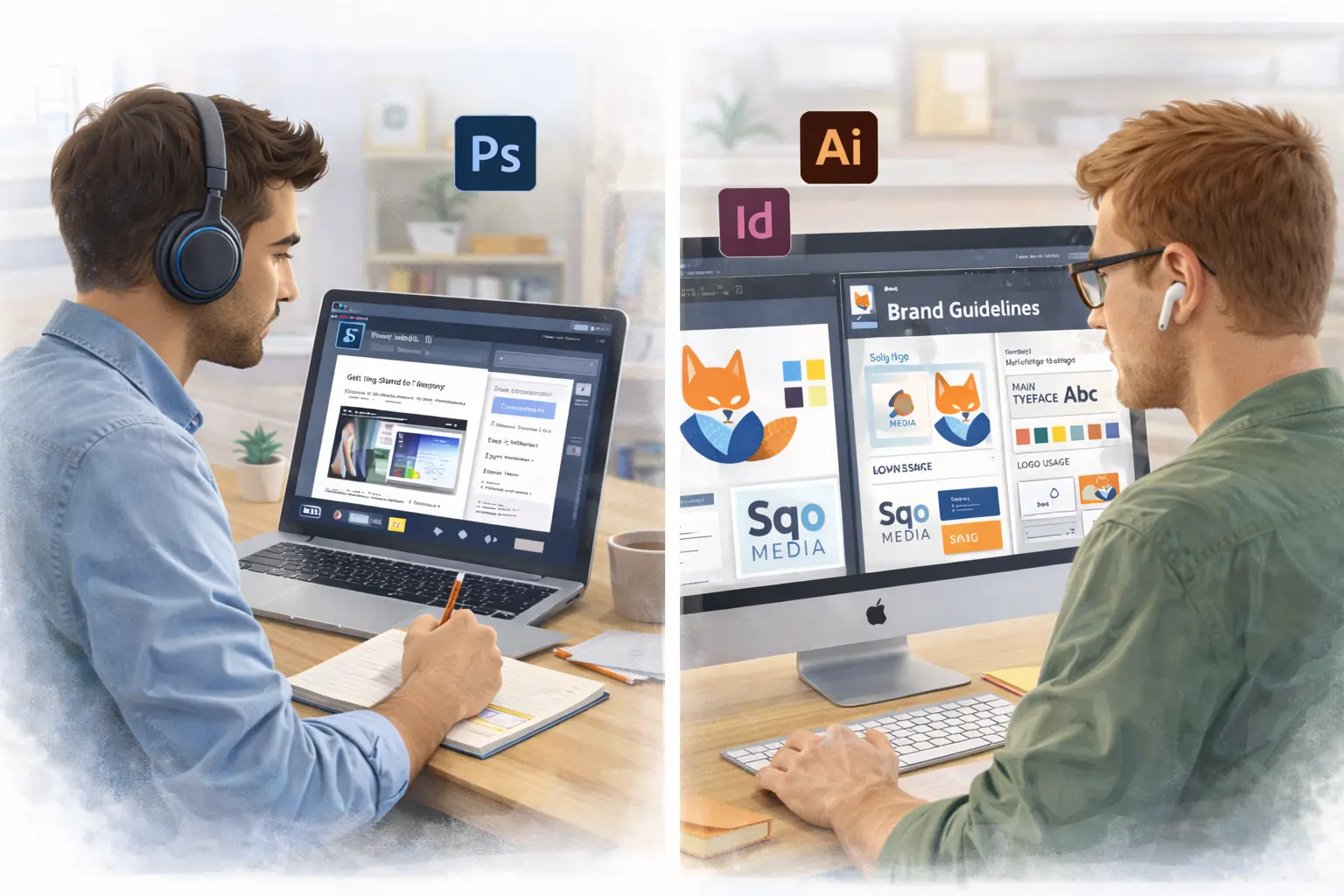
Photoshop is used for image editing, photo manipulation, digital artwork, and social media creatives. Illustrator is designed for vector-based design such as logos, icons, illustrations, and brand assets. InDesign is used for layout-heavy work like brochures, magazines, presentations, and PDFs.
What makes Creative Cloud powerful is not just these tools individually, but how they work together. A logo created in Illustrator can be placed into a Photoshop mockup, then compiled into an InDesign brand guide—all while staying editable.
🔥 LinkedIn Premium Business Plan 12 Months
Original Price ₹23,000 • Get it ₹8XXX
🤖 Gemini AI Advanced Pro Plan
Original Price ₹19,500 • Get it ₹8XXX
💼 LinkedIn Sales Navigator Core
Original Price ₹80,000 • Get it ₹2XXXX
🎨 Canva Pro Lifetime Access
Original Price ₹3,999 • Get it ₹4XX
📚 Coursera Plus Annual Plan
Original Price ₹33,000 • Get it ₹2XXX
✨ Adobe Creative Cloud All Apps
Original Price ₹59,000 • Get it ₹4XXX
How to Use Adobe Creative Cloud for Beginners (Right Learning Approach)
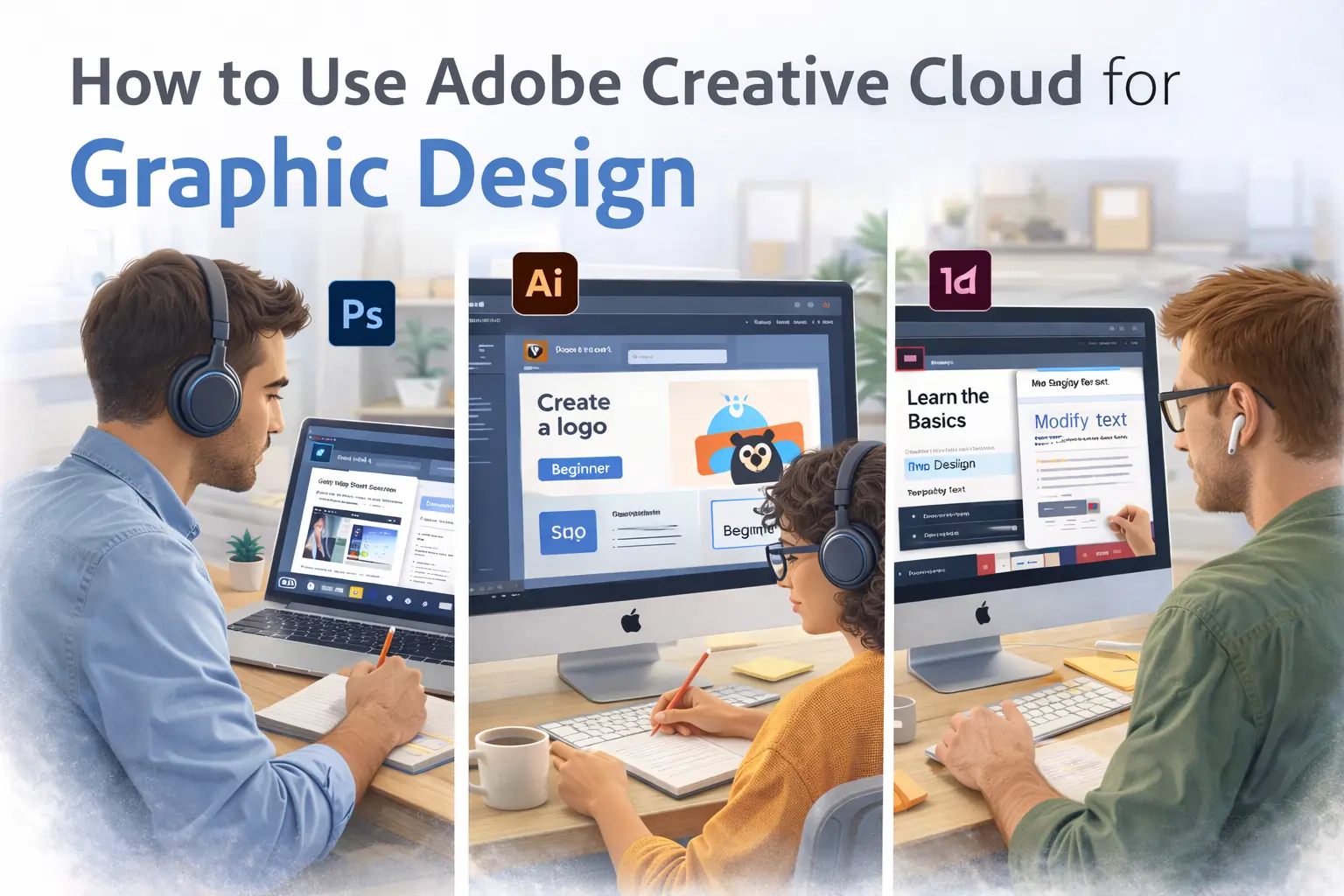
The biggest mistake beginners make is trying to learn everything at once. Adobe Creative Cloud is deep, and rushing creates frustration.
The correct beginner approach is to start with one core tool based on your immediate need. For most graphic designers, this means starting with Photoshop or Illustrator.
Spend time understanding:
-
the interface,
-
basic tools,
-
layers and artboards,
-
and export settings.
Once you feel comfortable with one app, adding another becomes easier because Adobe apps share design logic, shortcuts, and workflows.
Creative Cloud rewards progressive learning, not speed.
Setting Up Adobe Creative Cloud for Design Workflows
Before designing anything, Creative Cloud should be set up properly. This step saves hours later.
After installing the Creative Cloud desktop app, organize your cloud storage and enable Creative Cloud Libraries. Libraries allow you to store brand colors, logos, fonts, and reusable elements in one place.
For example, when designing a brand identity, you can save the logo, color palette, and typography in a library and access them across Photoshop, Illustrator, and InDesign. This ensures visual consistency and avoids duplication.
Professional designers treat Libraries as the foundation of scalable design systems.
🔥 LinkedIn Premium Business Plan 12 Months
Original Price ₹23,000 • Get it ₹8XXX
🤖 Gemini AI Advanced Pro Plan
Original Price ₹19,500 • Get it ₹8XXX
💼 LinkedIn Sales Navigator Core
Original Price ₹80,000 • Get it ₹2XXXX
🎨 Canva Pro Lifetime Access
Original Price ₹3,999 • Get it ₹4XX
📚 Coursera Plus Annual Plan
Original Price ₹33,000 • Get it ₹2XXX
✨ Adobe Creative Cloud All Apps
Original Price ₹59,000 • Get it ₹4XXX
How to Use Adobe Creative Cloud for Branding Projects
Branding is one of the strongest use cases of Adobe Creative Cloud because branding requires consistency across multiple formats.
A typical branding workflow might start in Illustrator, where logos and icons are created using vector tools. These assets are then saved to Creative Cloud Libraries. From there, they can be reused in Photoshop for mockups or in InDesign for brand guidelines.
The real advantage is control. If a logo color changes, updating it in the library updates it everywhere. This is why Creative Cloud is widely used by agencies and branding professionals.
Branding is not just about creativity- it is about systematic consistency, and Creative Cloud is built for that.
How to Use Adobe Creative Cloud for Social Media Design
Social media design demands speed, adaptability, and consistency. Adobe Creative Cloud handles this well when used correctly.
Photoshop is commonly used for creating social media posts, banners, and ads. Designers often create templates using smart objects and artboards for different platforms like Instagram, Facebook, and LinkedIn.
Illustrator is useful for creating icons, vector illustrations, and scalable elements that remain sharp across all sizes. These assets can be reused repeatedly without quality loss.
By combining templates, libraries, and presets, Creative Cloud helps designers produce high volumes of content without sacrificing quality.
How Adobe Creative Cloud Improves Professional Design Efficiency
Efficiency is where Creative Cloud truly shines for experienced designers.
Cloud syncing ensures files are accessible across devices. Auto-save reduces the risk of lost work. Version history allows you to revert changes without panic.
Collaboration tools enable teams to share files, comment, and review designs without endless email chains. This is especially useful for agencies, remote teams, and freelancers working with clients.
Over time, these small efficiencies compound into massive productivity gains.
How to Use Adobe Creative Cloud for Video & Motion (When Needed)
Although this article focuses on graphic design, modern designers often need to handle basic motion or video work.
Creative Cloud includes tools like After Effects and Premiere Pro, which integrate well with Photoshop and Illustrator. For example, a logo designed in Illustrator can be animated in After Effects without rebuilding it.
This cross-tool compatibility allows designers to expand into motion graphics without changing ecosystems.
Adobe Creative Cloud Features Designers Often Underuse
Many designers pay for Creative Cloud but underutilize its features.
Adobe Fonts provides thousands of high-quality fonts that can be synced instantly without licensing worries. Creative Cloud Libraries enable design systems. Cloud documents allow live syncing and collaboration.
Using these features transforms Creative Cloud from a toolset into a design infrastructure.
Common Mistakes Designers Make with Adobe Creative Cloud
One common mistake is treating Creative Cloud apps as isolated tools. This leads to duplicated work and inconsistency.
Another mistake is ignoring non-design features like libraries and cloud storage. These features may not look creative, but they are what separate amateur workflows from professional ones.
Finally, many beginners rely too heavily on tutorials without understanding fundamentals. Tools change, but design principles do not.
How to Use Adobe Creative Cloud Effectively (Pro Mindset)
Using Creative Cloud effectively is about mindset, not just skills.
Professional designers think in systems. They plan assets, reuse components, and build templates. They organize files, name layers properly, and document brand rules.
Adobe Creative Cloud supports this way of working- but only if you choose to use it intentionally.
Is Adobe Creative Cloud Worth It for Graphic Designers?
Adobe Creative Cloud is worth it if graphic design is more than a hobby for you. For professionals, freelancers, agencies, and serious learners, the ecosystem saves time, improves consistency, and scales with experience.
For beginners, it may feel overwhelming initially, but long-term value comes from mastering industry-standard tools early.
Final Verdict- How to Use Adobe Creative Cloud for Graphic Design
Adobe Creative Cloud is not just software. It is a professional design environment.
When used properly, it allows designers to:
-
work faster without cutting corners,
-
maintain brand consistency,
-
collaborate efficiently,
-
and grow into advanced creative roles.
Final Thought
If you want to work seriously in graphic design, learning how to use Adobe Creative Cloud effectively is not optional—it is foundational. Master the ecosystem, not just individual tools, and your design workflow will scale naturally with your skills.