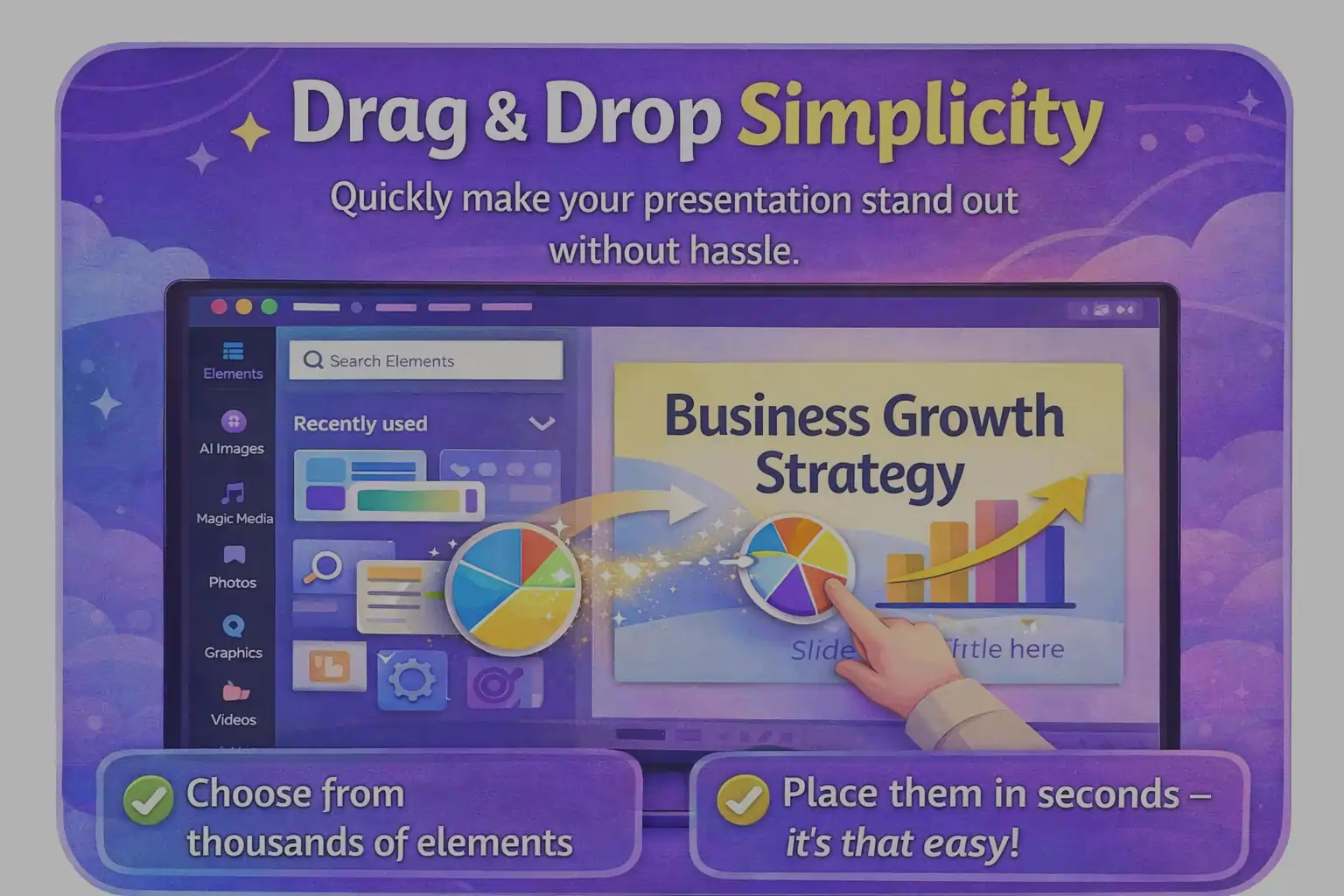
Creating presentations sounds simple until you actually sit down to make one.
You open a blank slide and suddenly you’re dealing with layout alignment, font pairing, colors, spacing, image quality, and consistency – all at once. Most people don’t struggle with ideas. They struggle with design decisions. The result is predictable: either the slides look plain or they take hours to complete.
This is exactly the gap Canva was built to solve.
Instead of expecting users to learn design, Canva removes the need to design manually. You start with structure first, then customize. That small shift changes how presentations are created.
Read Also- How to Use Gemini Advanced for Daily Tasks
What Problem Traditional Presentation Tools Create
Traditional tools like PowerPoint or manual slide builders assume you already understand visual hierarchy – how text, images, and spacing should relate. Most users don’t.
So they end up doing three things repeatedly:
- adjusting text size again and again
- moving objects pixel by pixel
- fixing alignment issues on every slide
The work becomes mechanical instead of communicative.
You spend more time arranging than explaining.
Direct answer:
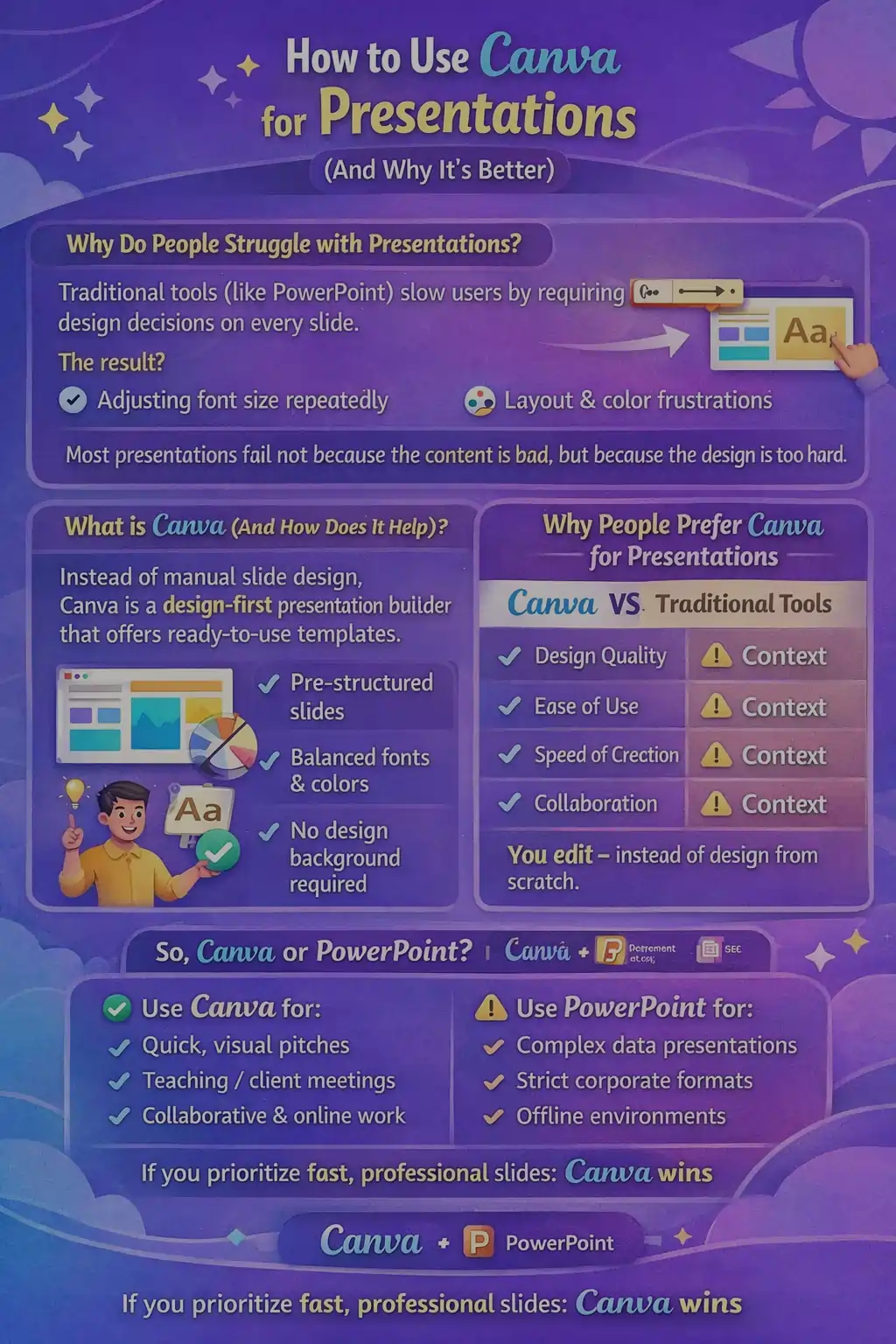
Traditional presentation tools slow users because they require design decisions on every slide, while Canva pre‑structures those decisions.
🔥 LinkedIn Premium Business Plan 12 Months
Original Price ₹23,000 • Get it ₹8XXX
🤖 Gemini AI Advanced Pro Plan
Original Price ₹19,500 • Get it ₹8XXX
💼 LinkedIn Sales Navigator Core
Original Price ₹80,000 • Get it ₹2XXXX
🎨 Canva Pro Lifetime Access
Original Price ₹3,999 • Get it ₹4XX
📚 Coursera Plus Annual Plan
Original Price ₹33,000 • Get it ₹2XXX
✨ Adobe Creative Cloud All Apps
Original Price ₹59,000 • Get it ₹4XXX
What Canva Actually Is (And Why People Prefer It)
Canva is a design‑first presentation builder. Instead of creating slides manually, you start from ready visual systems called templates. These templates already contain balanced spacing, readable fonts, and color harmony.
So your role changes:
You stop designing → you start editing.
This reduces cognitive load. The brain focuses on message instead of formatting.
People prefer Canva for presentations because:
- it removes layout guessing
- maintains visual consistency automatically
- speeds up creation dramatically
- requires no design background
Step‑by‑Step: How to Create a Presentation in Canva
Step 1 – Start a Presentation Project
Open Canva and choose Presentation format.
You’ll immediately see categorized templates (education, business, pitch, portfolio, minimal, etc).
Tip:
Don’t search randomly. First decide the presentation purpose – informative, persuasive, or report‑style – then pick a template matching that intent.
Step 2 – Choose the Right Template (Important Decision)
This is the most important step because your template determines readability.
Pick based on:
| Presentation Type | Best Template Style |
| Teaching / Educational | Clean & minimal |
| Business report | Neutral professional |
| Pitch / Sales | Bold visual |
| Portfolio | Image‑focused |
Bad slides usually come from wrong template selection, not bad content.
Step 3 – Replace Content Instead of Designing
Now simply replace placeholder elements:
- click text → type your message
- click image → upload yours
- duplicate slide → keep consistency
Avoid redesigning layouts unless necessary. Canva works best when you keep the original structure and only customize content.
Step 4 – Maintain Slide Flow
A presentation should feel like a conversation, not separate posters.
Use a simple slide logic:
1 idea = 1 slide
Do not overload slides with paragraphs.
People read slides slower than you speak.
Read Also: How to Use Microsoft 365 for Remote Work (Complete Practical Guide)
🔥 LinkedIn Premium Business Plan 12 Months
Original Price ₹23,000 • Get it ₹8XXX
🤖 Gemini AI Advanced Pro Plan
Original Price ₹19,500 • Get it ₹8XXX
💼 LinkedIn Sales Navigator Core
Original Price ₹80,000 • Get it ₹2XXXX
🎨 Canva Pro Lifetime Access
Original Price ₹3,999 • Get it ₹4XX
📚 Coursera Plus Annual Plan
Original Price ₹33,000 • Get it ₹2XXX
✨ Adobe Creative Cloud All Apps
Original Price ₹59,000 • Get it ₹4XXX
How to Write Slides That Actually Work
Good slides support speech, not replace it.
Instead of writing: se
“Our company experienced significant growth across multiple quarters due to improved strategic positioning”
Write:
Growth increased after strategy change
Short text improves comprehension and keeps audience attention on you.
Basic Slide Design Rules (Non‑Designer Friendly)
You don’t need design theory – just follow these rules.
Text Rule
Never use more than 2 font sizes per slide.
Color Rule
Use the template colors only.
Adding new colors breaks visual consistency instantly.
Spacing Rule
If something feels crowded, remove text – don’t shrink it.
Image Rule
Use images to explain, not decorate.
First Preview: Checking Your Presentation
Before finishing, switch to presentation preview mode.
Ask three questions:
- Can someone understand slides without explanation?
- Are slides readable from distance?
- Does each slide contain one idea?
If yes, the presentation is ready structurally.
Why Canva Speeds Up Presentation Creation
Canva reduces two major mental tasks:
Design thinking + formatting correction
Because those are pre‑handled, users only focus on communication. That is why beginners produce better slides faster compared to traditional tools.
Also Read – Canva vs Visme – Best for Business Graphics?
🔥 LinkedIn Premium Business Plan 12 Months
Original Price ₹23,000 • Get it ₹8XXX
🤖 Gemini AI Advanced Pro Plan
Original Price ₹19,500 • Get it ₹8XXX
💼 LinkedIn Sales Navigator Core
Original Price ₹80,000 • Get it ₹2XXXX
🎨 Canva Pro Lifetime Access
Original Price ₹3,999 • Get it ₹4XX
📚 Coursera Plus Annual Plan
Original Price ₹33,000 • Get it ₹2XXX
✨ Adobe Creative Cloud All Apps
Original Price ₹59,000 • Get it ₹4XXX
How to Use Canva for Presentations
Most presentations fail not because the information is wrong, but because the audience gets tired looking at them. When slides feel heavy, attention drops. Canva helps here, but only if you use it correctly.
So instead of using more features, the goal is to use fewer elements more intentionally.
How to Design Slides That Look Professional in Canva
People often think good design means creativity.
In presentations, good design actually means predictability.
The audience should never wonder where to look next.
The 3‑Second Rule
A viewer should understand the slide message within 3 seconds.
If they need to read a paragraph, the slide is overloaded.
Visual Hierarchy (Most Important Concept)
Every slide needs three levels:
- Main idea (largest text)
- Supporting point (medium text)
- Detail (small text or visual)
If everything looks same size → brain feels chaos.
Direct Answer:
Visual hierarchy improves comprehension because the brain processes size before words.
Fonts – Why People Ruin Good Templates
Templates already use compatible fonts.
Problems start when users change them.
Follow this rule:
- Keep the original heading font
- Only edit text content
- Never mix decorative fonts in informational slides
Readable slides beat stylish slides.
Color Usage – The Hidden Consistency Factor
Many presentations break visually after slide 4 because users start experimenting with colors.
Instead:
- Pick 1 accent color
- Use it only for highlights
- Never recolor icons randomly
Consistency is what makes slides look “professional”.
Images and Icons – When to Use Them
Add visuals only if they explain something faster than words.
Bad usage: decorative photos
Good usage: explanatory diagrams
If removing an image changes nothing → it was unnecessary.
Canva Collaboration Workflow (For Teams & Clients)
One underrated reason people switch to Canva is sharing.
Traditional workflow:
Create → Export → Send → Edit → Re‑export → Confusion
Canva workflow:
Create → Share link → Edit together
No duplicate versions. No file chaos.
How Team Editing Works
You can:
- invite members to edit
- leave comments on slides
- assign changes
- see updates instantly
This turns presentations from documents into conversations.
Direct Answer:
Canva improves teamwork by removing file‑sending and enabling real‑time editing inside one shared link.
Sharing Options Explained
| Sharing Type | When to Use |
| View link | Client approval |
| Comment link | Review stage |
| Edit link | Team collaboration |
| PDF export | Final delivery |
Choosing the correct permission avoids accidental edits.
Presenting Directly From Canva
You don’t actually need to download slides anymore.
Canva includes a built‑in presentation mode similar to a slideshow viewer but with extra advantages.
Presenter Mode
Shows:
- current slide
- next slide
- speaker notes
So you don’t memorize everything – you guide it.
Recording a Presentation
You can record your screen + voice inside Canva and send a link instead of presenting live.
Useful for:
- async teams
- client walkthroughs
- course creators
Live Sharing
Instead of sending files, you send a presentation link.
Viewers always see the latest version – no outdated slides floating around.
Common Mistakes People Make in Canva
Even with a good tool, habits matter.
Most frequent issues:
- writing paragraphs on slides
- using too many icons
- changing template fonts
- using bright colors everywhere
- designing each slide differently
Remember:
Presentations succeed through consistency, not decoration.
Quick Quality Checklist Before Presenting
Before presenting, check:
- each slide contains one message
- text readable from distance
- colors consistent
- images meaningful
- flow logical
If all five pass – your presentation is ready.
How to Use Canva for Presentations
By now you know how to create, design, and present slides in Canva.
But one real question still remains:
Should you actually use Canva for presentations – or stick with PowerPoint or similar tools?
The answer depends less on features and more on how you work.
So let’s break it down practically.
Canva vs PowerPoint – Practical Comparison
| Feature | Canva | PowerPoint |
| Ease of use | Very easy (beginner friendly) | Moderate learning curve |
| Design quality | Ready‑made professional templates | Depends on user skill |
| Collaboration | Real‑time link sharing | File based sharing |
| Speed of creation | Fast | Slower |
| Offline usage | No | Yes |
| Custom animations | Limited | Advanced |
| Best for | Visual presentations & teams | Data heavy & formal presentations |
| Installation | Browser based | Software based |
Simple understanding:
Canva saves time. PowerPoint gives control.
Also Read – Canva Pro vs Free: What Is the Real Difference in 2026?
Which Tool Is Better For You?
| User Type | Better Choice | Reason |
| Students | Canva | Faster & easier |
| Teachers | Canva | Visual teaching |
| Freelancers | Canva | Client sharing |
| Marketers | Canva | Visual storytelling |
| Corporate reporting | PowerPoint | Structured formatting |
| Data presentations | PowerPoint | Advanced charts |
| Remote teams | Canva | Link‑based collaboration |
When Canva Is the Right Choice
Use Canva when your goal is communication clarity.
Best situations:
- pitching ideas
- teaching concepts
- client presentations
- webinars
- marketing decks
- online meetings
Here the audience needs understanding, not documentation.
When Canva Is NOT the Best Choice
Avoid Canva if your presentation requires heavy control.
Examples:
- financial reporting
- complex animations
- offline presenting environments
- strict corporate formatting templates
In these cases, PowerPoint still works better.
Real‑World Pros and Cons
Advantages of Canva
- No design skills required
- Extremely fast slide creation
- Easy sharing with clients
- Consistent visual quality
- Works on any device
Limitations of Canva
- Internet required
- Limited advanced animation
- Less suitable for complex charts
- Less formatting control
Final Verdict
Canva is not trying to replace PowerPoint completely.
It replaces the effort of making decent‑looking slides.
If your presentation goal is explaining ideas → Canva wins.
If your goal is controlling structure → PowerPoint wins.
The right tool depends on whether you care more about speed or precision.
Read Also: Otter.ai vs Notta – Best Transcription Tool?
FAQs
Is Canva good for professional presentations?
Yes. For most business and educational presentations, Canva produces visually professional slides without design skills.
Can Canva replace PowerPoint?
For everyday presentations, yes. For advanced formatting or offline work, PowerPoint is still better.
Is Canva free for presentations?
Yes. The free plan includes many templates. Premium templates require Pro version.
Can you present directly from Canva?
Yes. Canva has a built‑in presenter mode and sharing link.
Does Canva reduce presentation quality?
No. Exports are high resolution if downloaded as PDF or PPT.
How to download Canva slides as PPT?
Click Share → Download → Microsoft PowerPoint format.
Does Canva work offline?
No. Internet connection is required.
Is Canva good for students?
Yes. It is one of the easiest tools for school and college presentations.
Can multiple people edit a Canva presentation?
Yes. Teams can edit and comment in real time using a shared link.
Is Canva better for remote teams?
Yes. Because no files need to be sent – only a link.